Installing the tool in Moodle
The whole path, walked and screenshotted against Moodle 5.2 and 5.3 — the invitation, the registration, and the three settings without which nothing happens.
This page is the administrator's walk-through: making one Moodle able to open this installation's activities. It is the concrete version of Connecting a course platform, which explains the mechanism.
What a teacher does afterwards is Placing an activity in a Moodle course.
Everything below was performed, on 2026-09-08, against Moodle 5.2.2 (build 20260810) and Moodle 5.3dev (build 20260807). The screenshots are of those runs. The interface is shown in English on both sides.
Three things that decide whether this works at all
None of them announces itself, and two of them fail in silence.
Your installation must not send X-Frame-Options
A registration happens inside an iframe on the Moodle page, and so does every
launch afterwards. The shipped security-headers.conf sends
X-Frame-Options: SAMEORIGIN, which refuses a foreign origin — and Moodle is a
foreign origin. Measured: the frame stays blank and the browser console says
nothing at all.
Swap it for a policy that can name the platform, in
nginx/snippets/security-headers.conf:
# instead of the X-Frame-Options line
add_header Content-Security-Policy "frame-ancestors 'self' https://moodle.example.edu;" always;
The reasoning, and what it costs elsewhere, is in Your own reverse proxy.
The platform has to be HTTPS, not only the tool. The Server fetches the
platform's own configuration document before it registers anything, and refuses
an address that is not https. A Moodle on plain HTTP is turned away with "The
platform gave no usable configuration address" — before anything is dialled, so
there is nothing in the platform's log either.
The Server has to know its public address. A registration the platform starts
refuses to issue an invitation unless AJ_PublicApiUrl resolves to an absolute
address, and an installation reached on a non-default port loses that port
without it. This stack leaves it unset, so it goes in an overlay named by
COMPOSE_FILE in your .env — Connecting a course
platform has the reason that matters:
# state/lti.compose.yaml
services:
  server:
    environment:
      AJ_PublicApiUrl: https://algojudge.example.edu/api/v1
1. Expect a registration
In AlgoJudge, open LTI platforms in the manager panel. On a fresh installation it says nothing is registered.
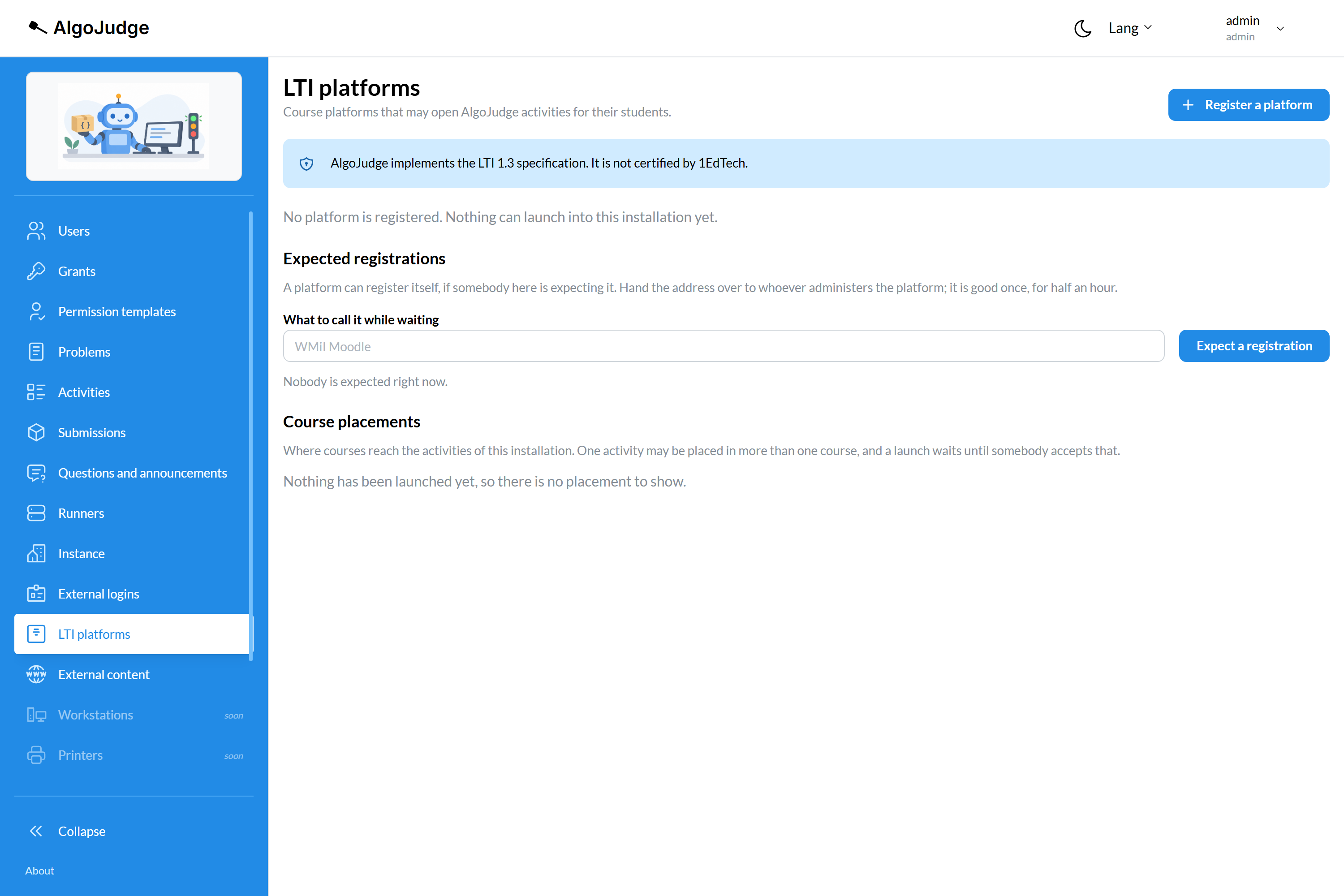
Type a name for the Moodle you are about to connect — it is only a label to recognise the invitation by — and press Expect a registration.
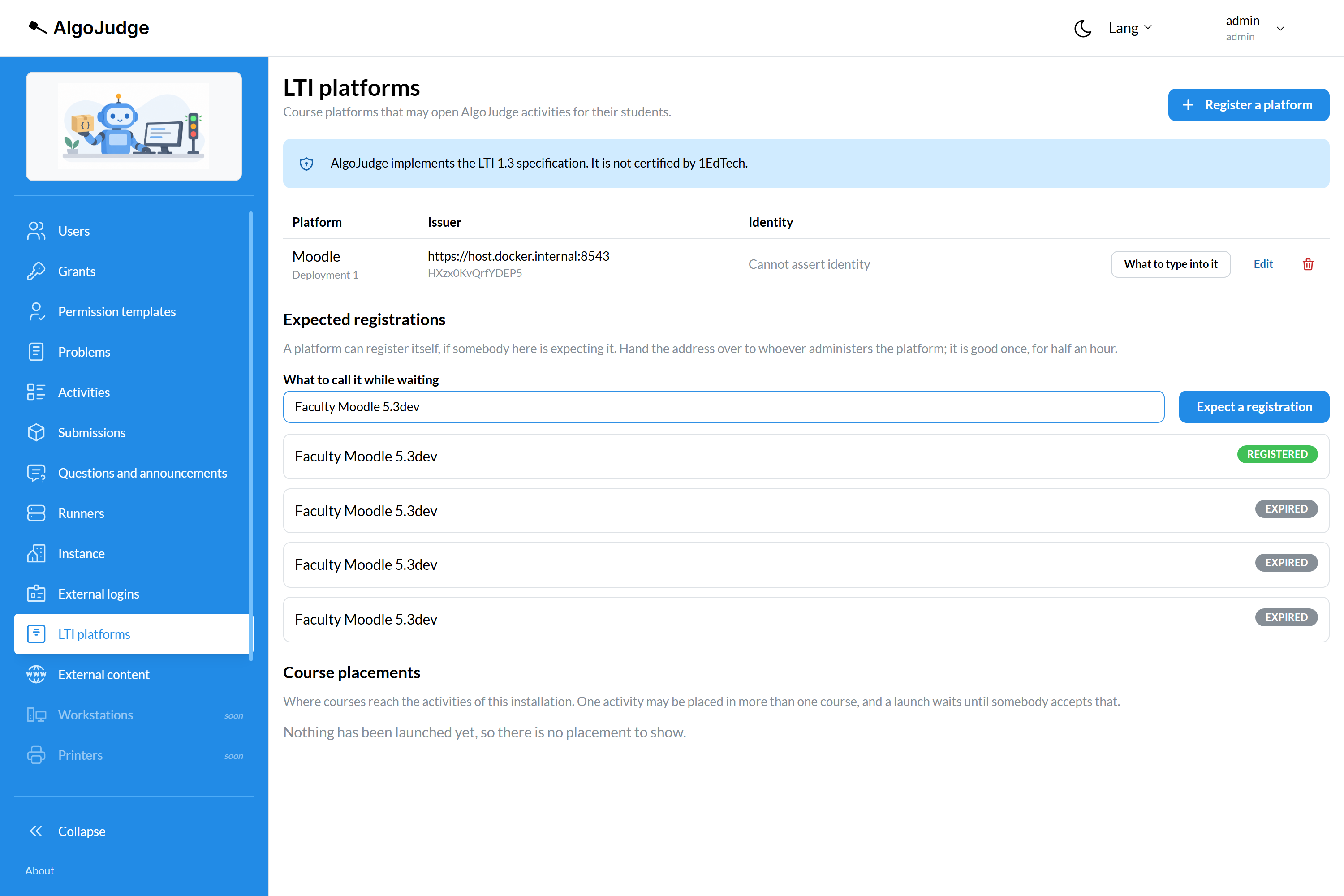
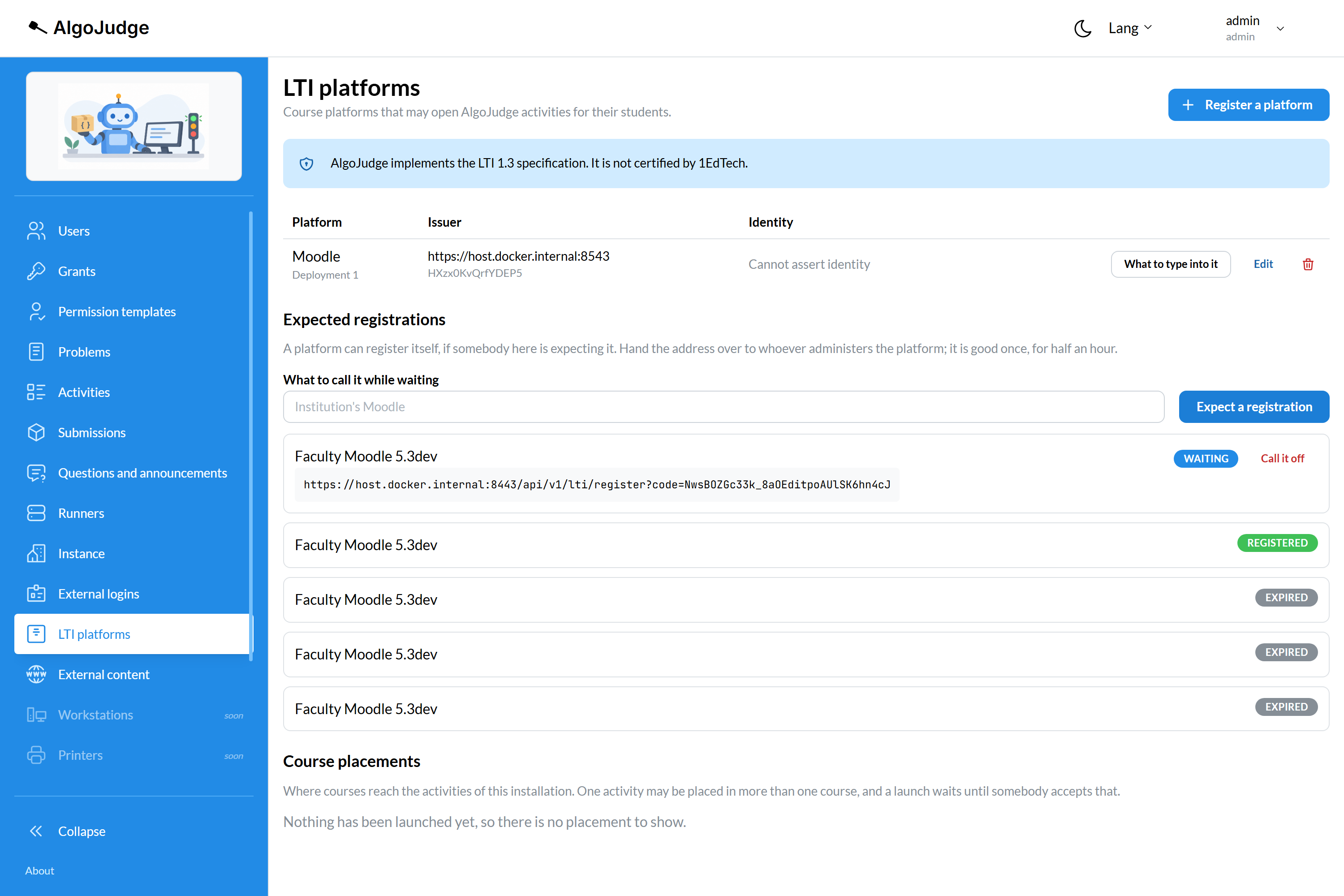
You get an address. It is good once, for thirty minutes, and it can be called off before it is used.
2. Hand the address to Moodle
Site administration → Plugins → Activity modules → External tool → Manage tools. Paste the address into Tool URL and press Add LTI Advantage.
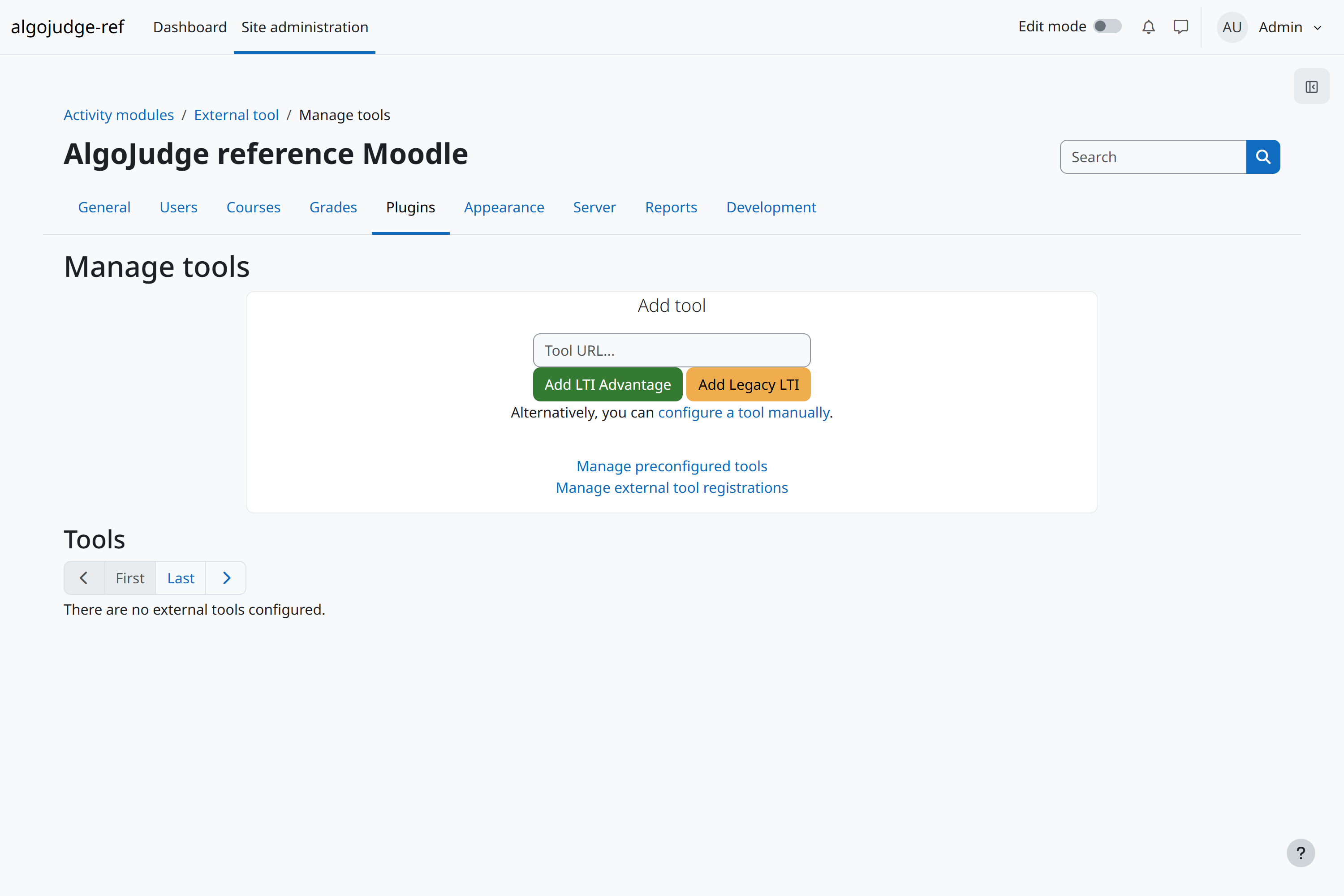
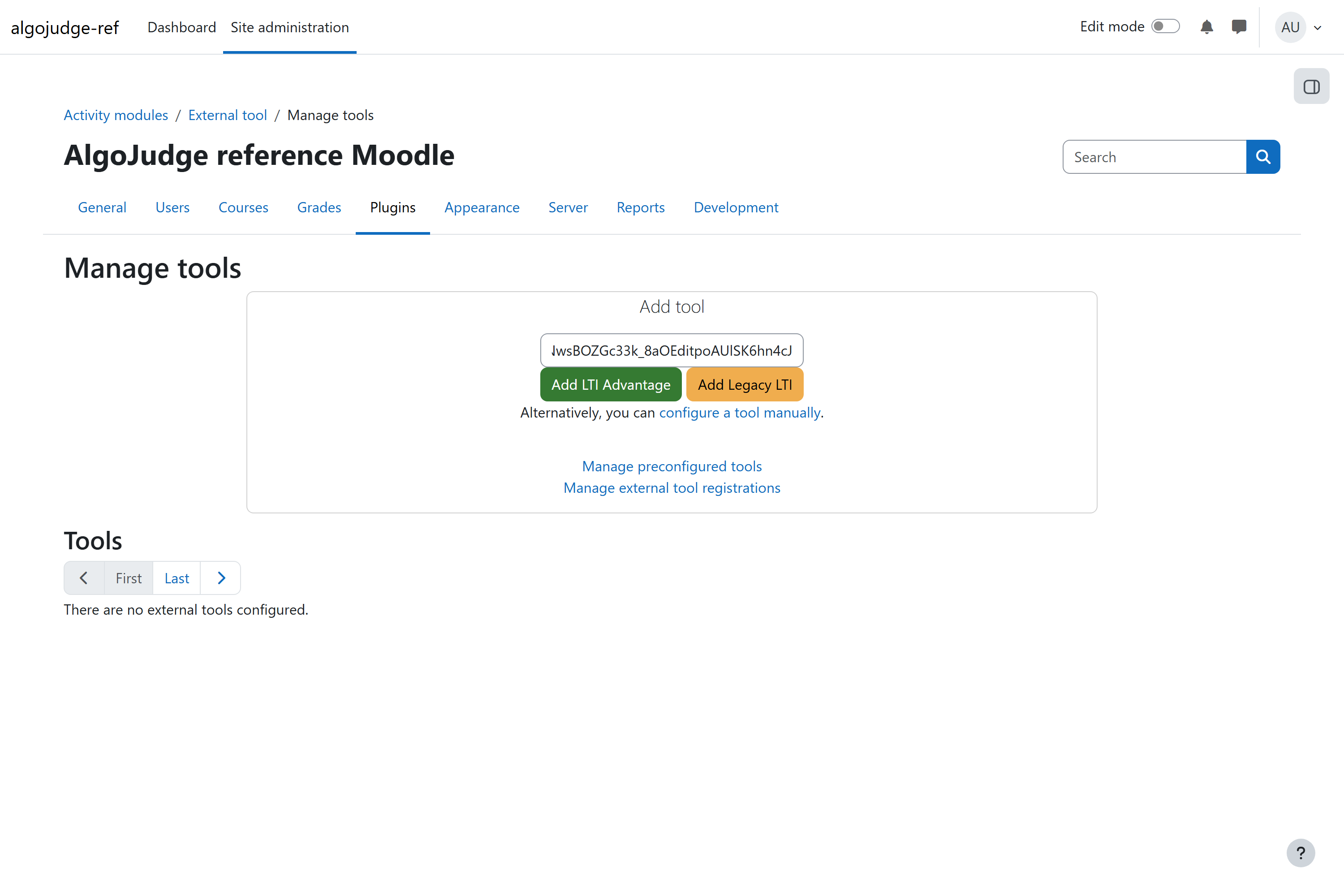
Moodle opens the tool's registration page in a frame, the two exchange what they need, and a tool card appears — Pending.
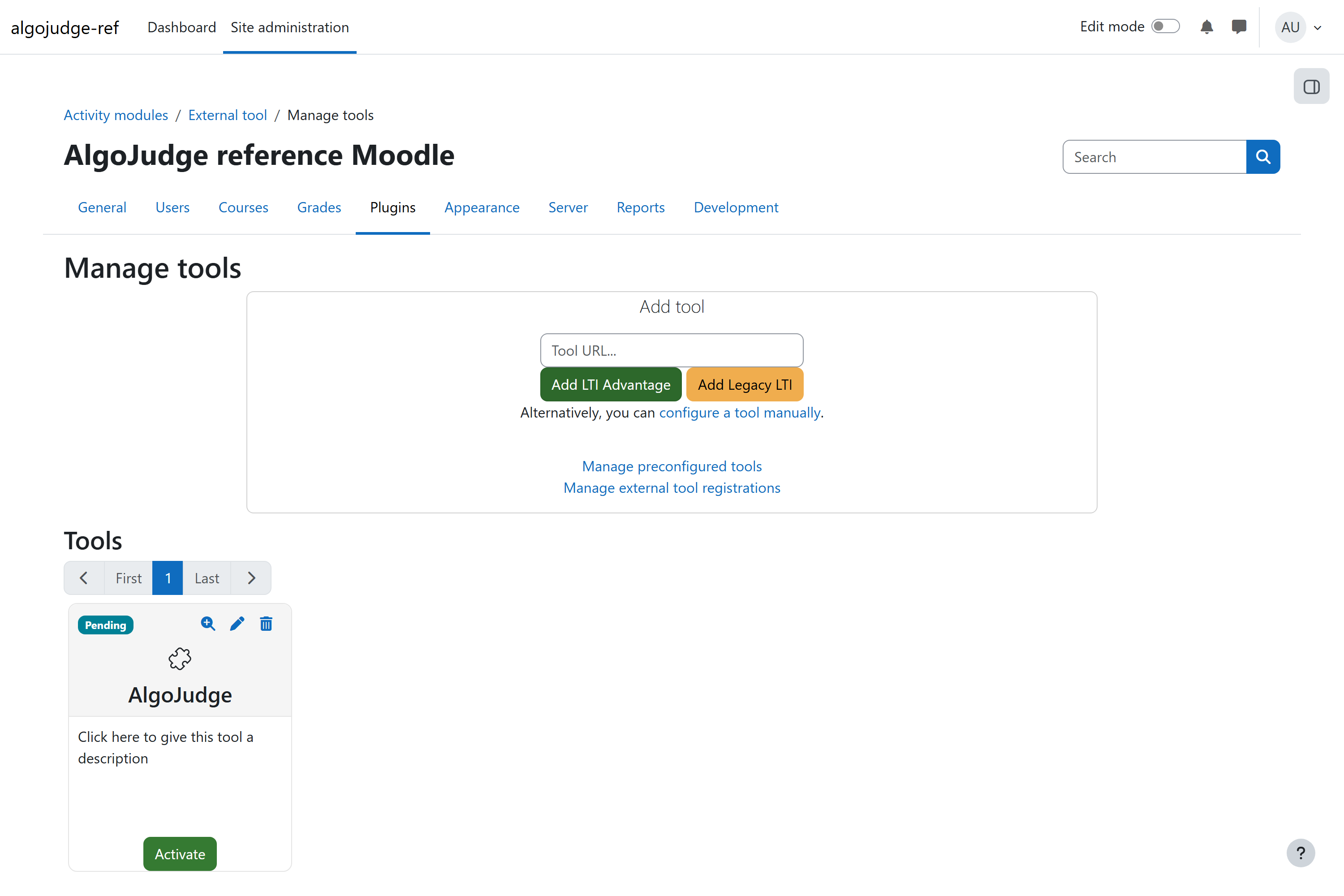
Press Activate. Nothing launches until you do.
3. Accept launches, and decide about identity
Back in AlgoJudge the platform is now listed — and disabled. That is deliberate: a registration is somebody else's action, and what it produces does not start working because it arrived.
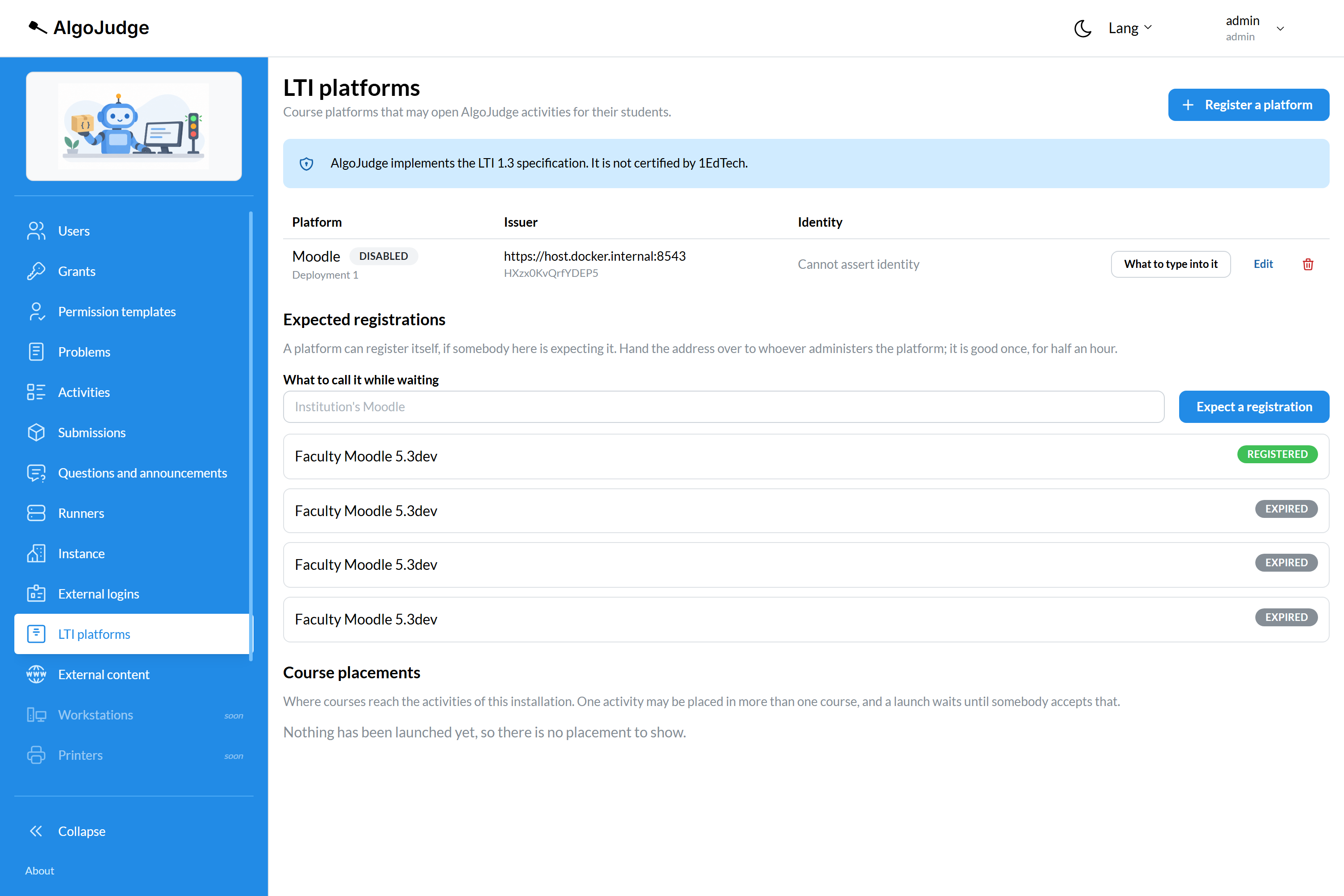
Press Edit. Two switches matter.
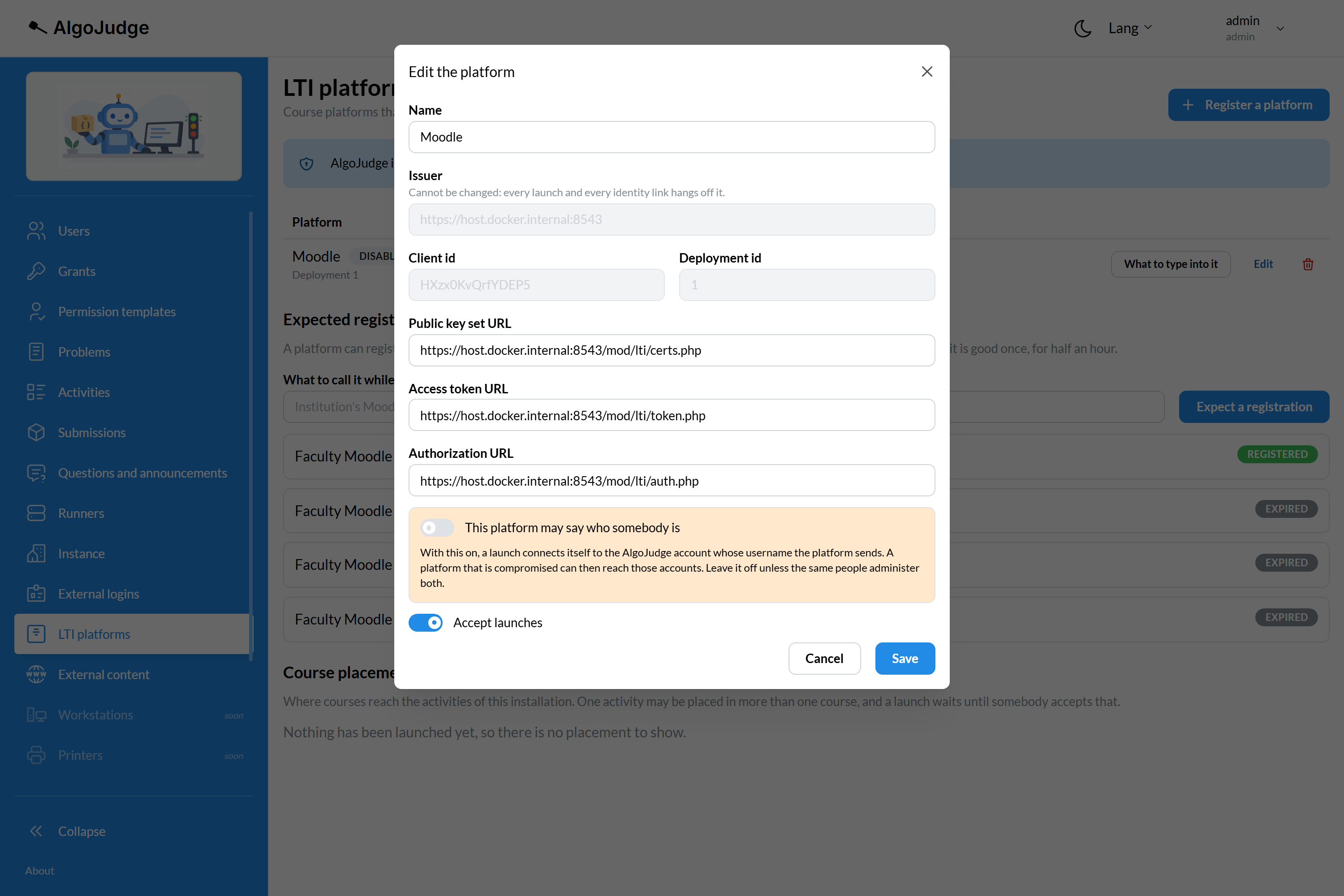
Accept launches is the one that turns it on. Save, and the disabled badge goes away.
This platform may say who somebody is is the one to leave alone unless you mean it. With it on, a launch connects itself to the AlgoJudge account whose username the platform sends — so a compromised platform reaches those accounts.
Trusting a platform with identity needs an identity provider
The switch alone is refused: "A platform trusted to assert identity must name the namespace it is trusted within". The namespace is an identity provider's slug — the accounts it may claim are the ones that came through that provider, never local accounts and never administrators. Register the provider first under External logins, then come back.
With it off, everything still works: the first launch asks the person to sign in once, and remembers.
4. Let courses see it
A registered tool is not yet a tool a teacher can reach. In Moodle, edit the tool and set Tool configuration usage to Show in activity chooser and as a preconfigured tool.
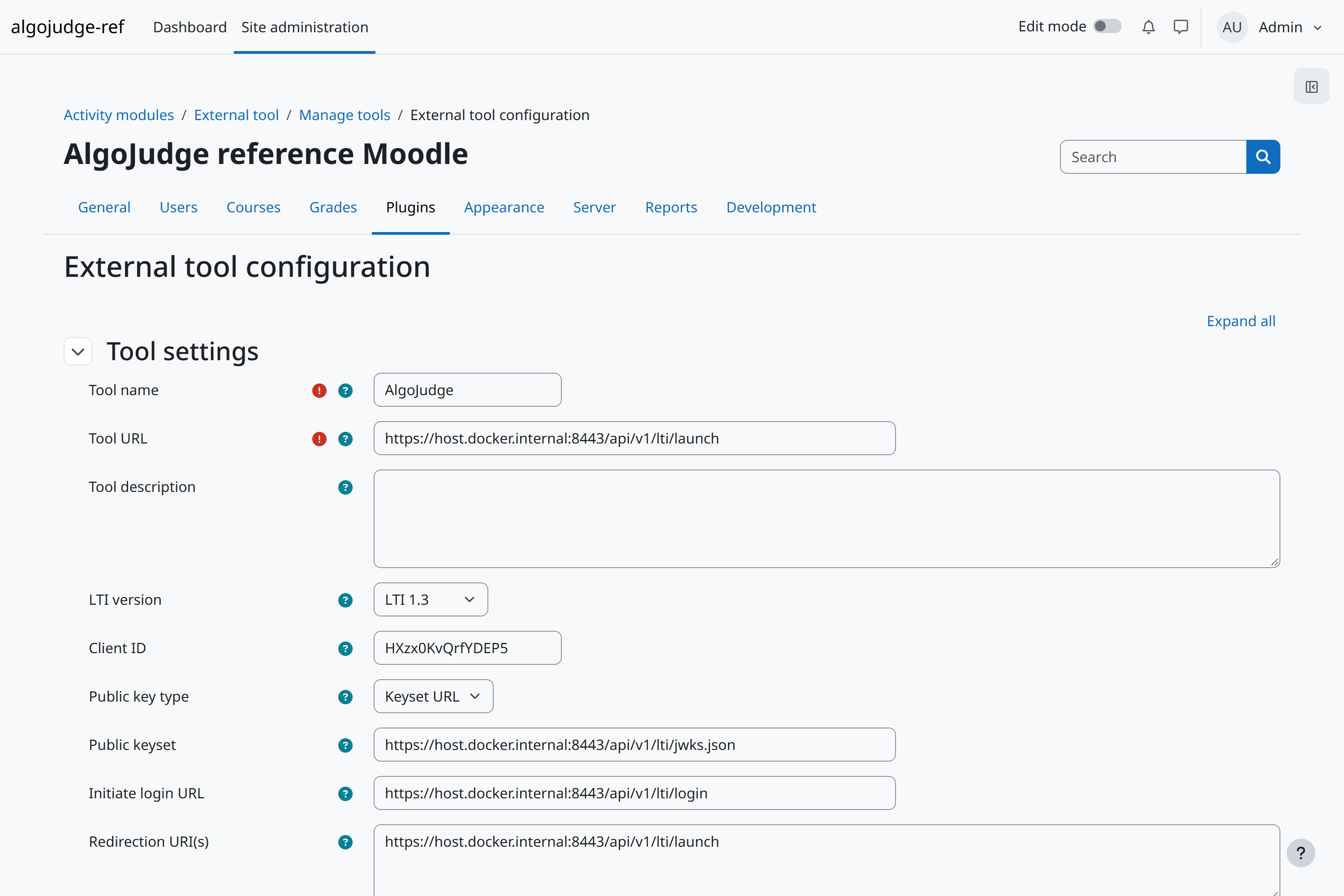
Without this the tool exists, is active, and appears nowhere a teacher looks.
The other way in: writing it out by hand
If the platform cannot register itself — an older Moodle, or an administrator who wants to see every value — press What to type into it on the platform's row. The four addresses are the same for every platform.
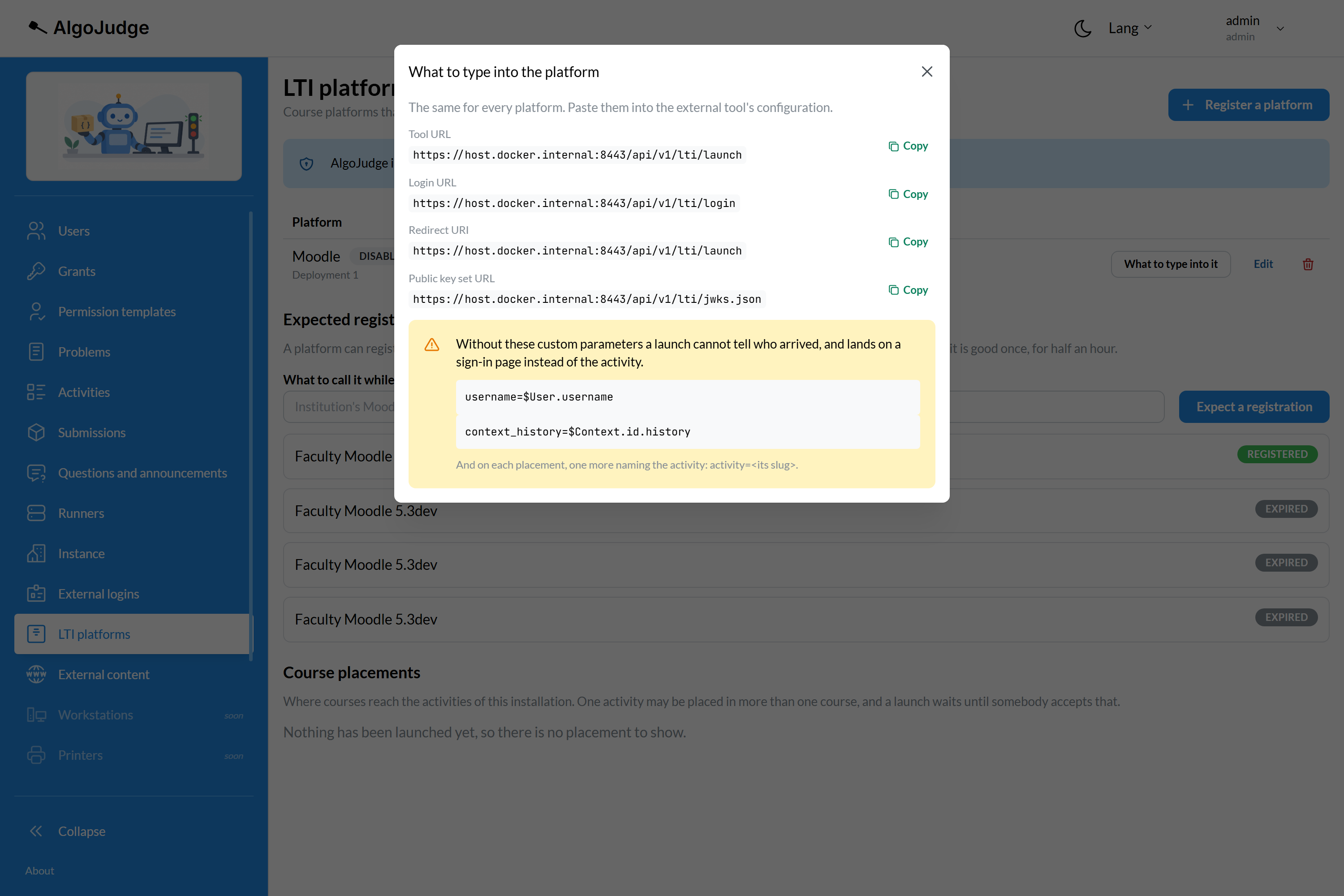
The two custom parameters at the bottom are not optional: without them a launch cannot tell who arrived, and lands on a sign-in page instead of the activity.
More than one Moodle
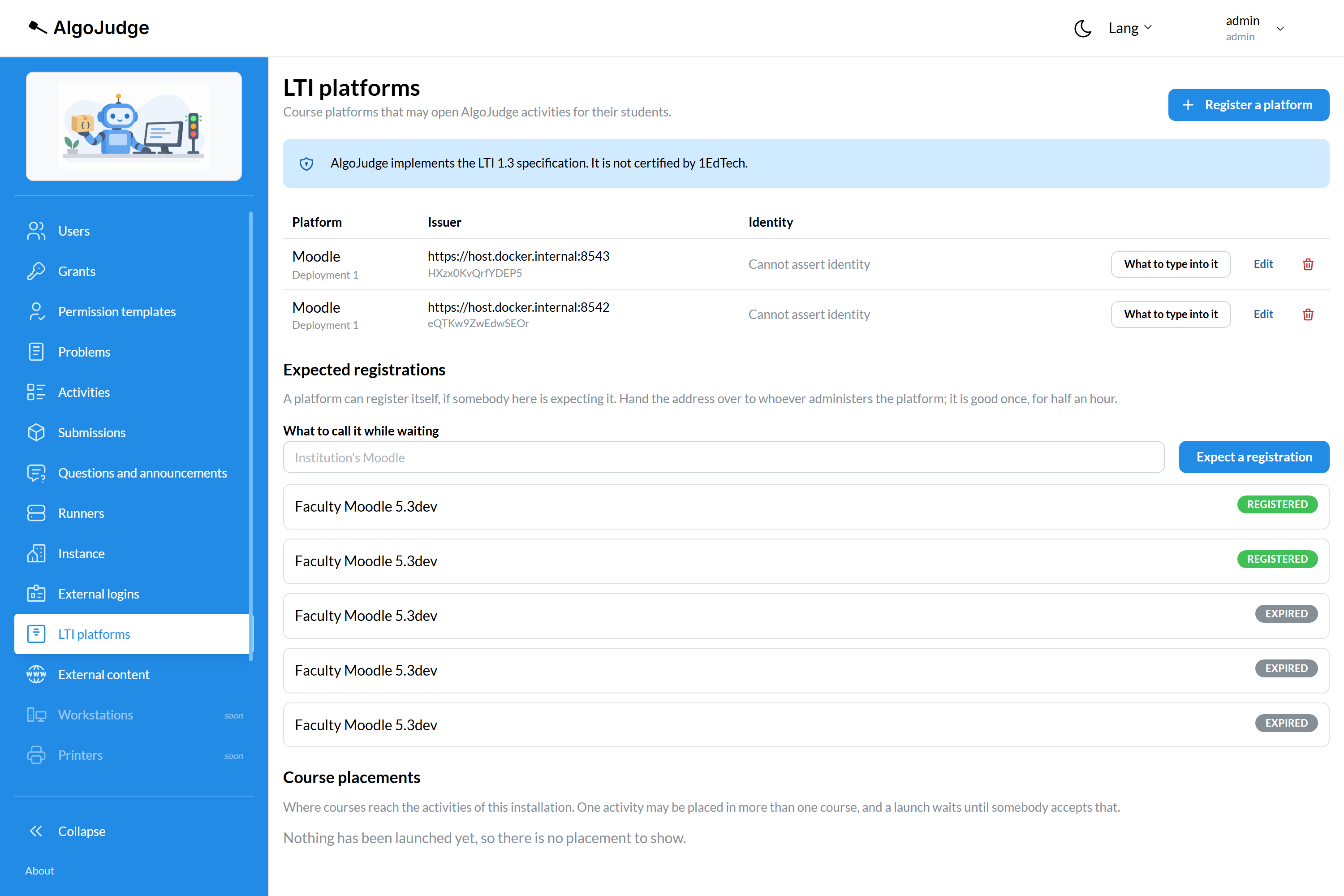
Nothing here is one-per-installation. A faculty running two Moodles registers both, and each gets its own row, its own client id and its own deployment.
What to do when it does not work
The frame is blank and the console is empty. The frame policy, above. This is the commonest one and the only one with no error anywhere.
"The platform gave no usable configuration address." The platform's address is not HTTPS, or it is an address the Server cannot resolve.
The registration address is refused as expired. It is good once, for thirty minutes. Issue another; a platform that answers badly does not spend one.
A development Moodle with a self-signed certificate is refused by the Server for the same reason any untrusted certificate is. That is a property of the development stack rather than of the product.
Next
- Placing an activity in a Moodle course — what a teacher does with what you have just connected.
- Connecting a course platform — the mechanism, and what has and has not been verified.
- Your own reverse proxy — the frame policy and the two-origin arrangement in full.