Placing an activity in a Moodle course
What a teacher does in the course, what a launch looks like from the inside, and where the placement lands in the manager panel.
Once an administrator has connected the Moodle — see Installing the tool in Moodle — a teacher puts AlgoJudge into a course as an External tool activity. Students then open it from the course, and never type an AlgoJudge address.
Walked on 2026-09-08 against Moodle 5.2.2 and 5.3dev. Where the two differ, the tabs say so; the screenshots are of the run that produced them.
Before you start
The tool has to be visible to courses. That is one setting on the administrator's side, and without it nothing below is offered anywhere. If AlgoJudge does not appear in the course, that setting is the first thing to check — Installing the tool in Moodle, under Let courses see it.
Know the slug of the activity you are placing. It is the one in the address of the activity in AlgoJudge, and it is what the course will name.
1. Add the activity to the course
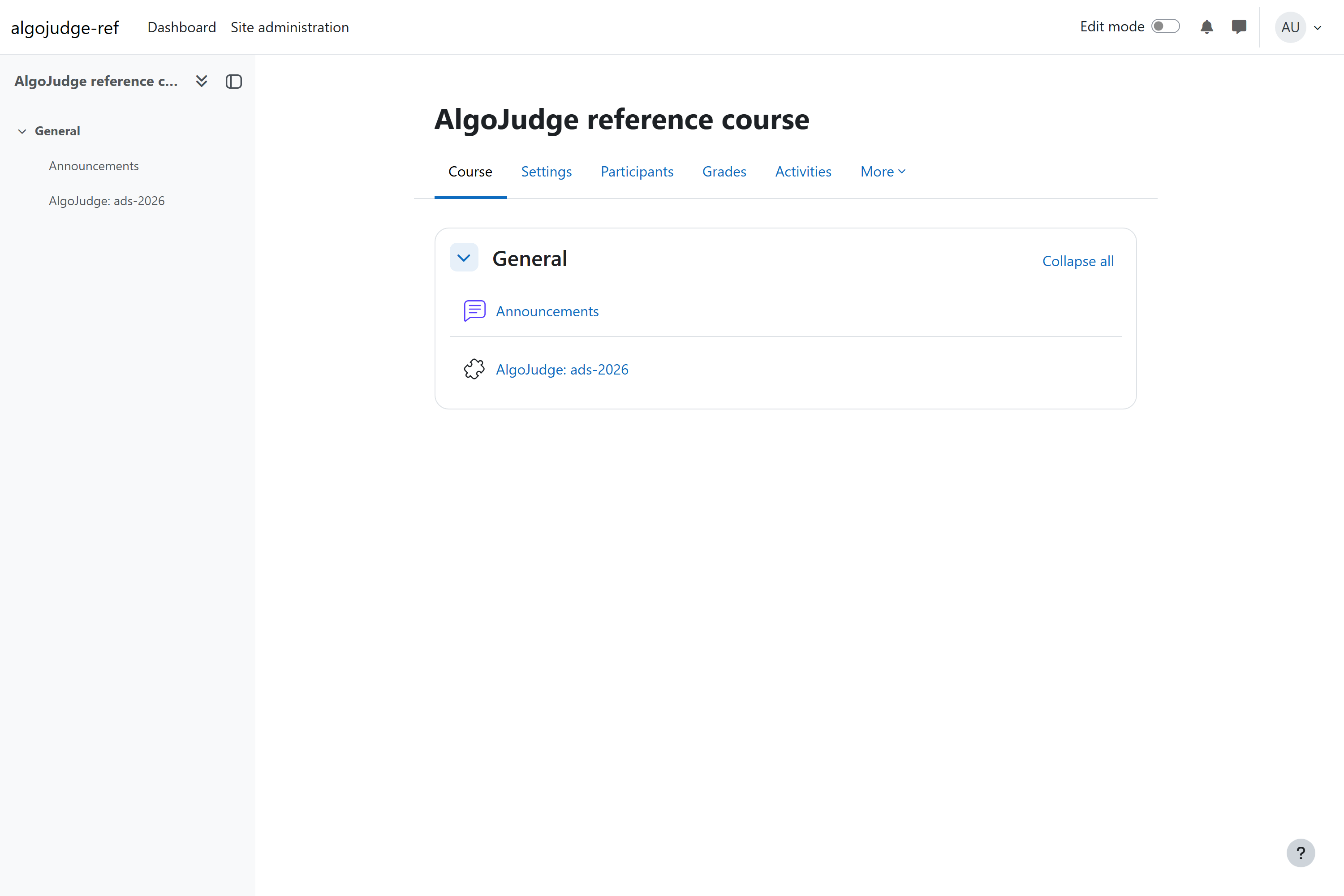
Turn Edit mode on, press the + in the section you want it in, and choose AlgoJudge from the list of activities. Give it a name — students see this name in the course, so name it after what it opens, not after the tool.
The activity then sits in the course like any other.
2. Say which activity it opens
A launch has to name the AlgoJudge activity it is for. That is one custom parameter on the Moodle activity:
activity=ads-2026Without it the launch arrives without a destination, and the person is told so
rather than being dropped somewhere arbitrary. The other two parameters —
username and context_history — belong to the tool as a whole and the
administrator sets them once; they are listed under
Installing the tool in Moodle, under The other way in.
3. What a launch looks like
Opening the activity keeps the person inside the course page: AlgoJudge renders in the frame Moodle gives it.
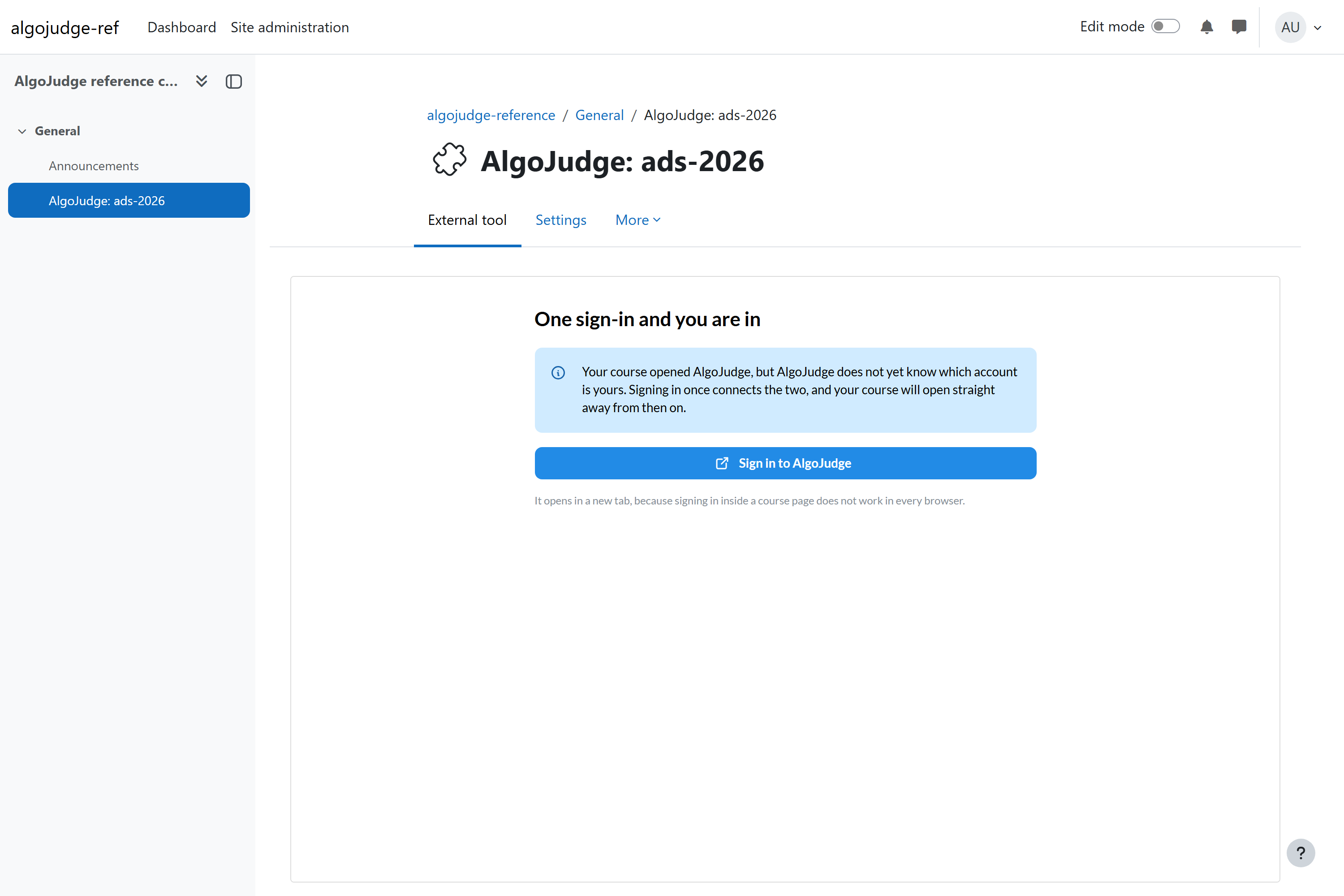
The first launch asks for one sign-in, because the installation is not letting the platform say who somebody is. Signing in once connects the two accounts, and afterwards the activity opens straight away. The sign-in opens in a new tab on purpose — a sign-in inside somebody else's frame is blocked by some browsers, and this is the arrangement that works in all of them.
It can be made seamless, and that is an administrator's decision
If the installation trusts the platform to assert identity, no sign-in is asked for at all. It needs an identity provider whose accounts the platform may claim, and it hands that platform real power over those accounts — Installing the tool in Moodle, under Accept launches, and decide about identity.
4. The placement, in the manager panel
Every course that has opened an activity here appears under Course placements on the LTI platforms screen.
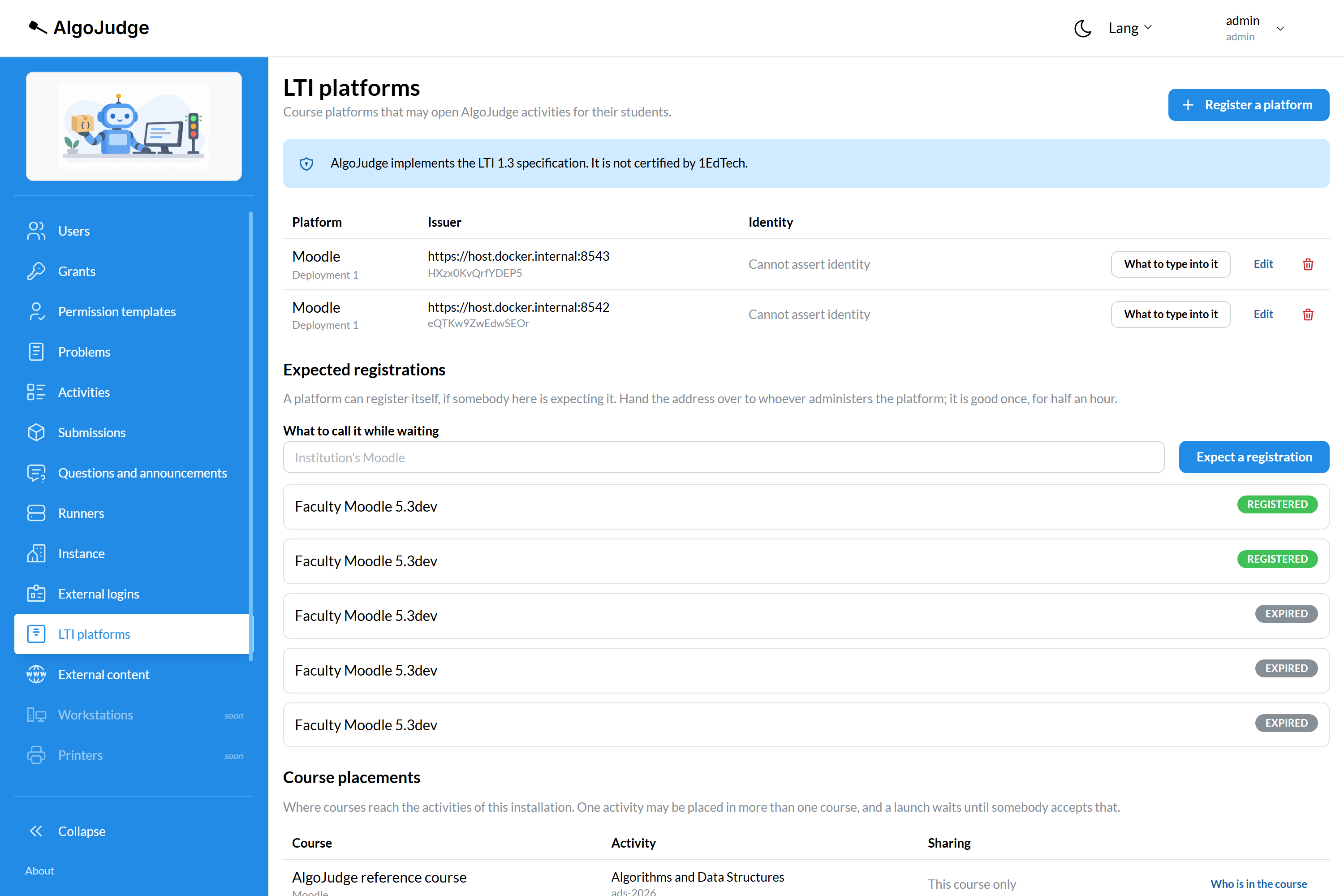
The row says which course, through which platform, which activity it reaches, and how it is shared. One activity may be placed in more than one course — a lecture stream and a laboratory group, two faculties sharing a contest — and each placement is its own row.
Who is in the course is the roster the platform reports. It is what lets an activity be opened by everybody in the course without anybody being enrolled in AlgoJudge by hand; Enrolment covers what that means beside the other ways in.
Next
- Installing the tool in Moodle — the administrator's half, including everything that must be true before any of this works.
- External logins and LTI platforms — the same screen, described as a screen.
- Activities — what you are placing.